- Help
- Using the dashboard
- Pinned links and files
Pinned links and files
Keep the links and files everyone keeps asking for in one place, for the whole project.
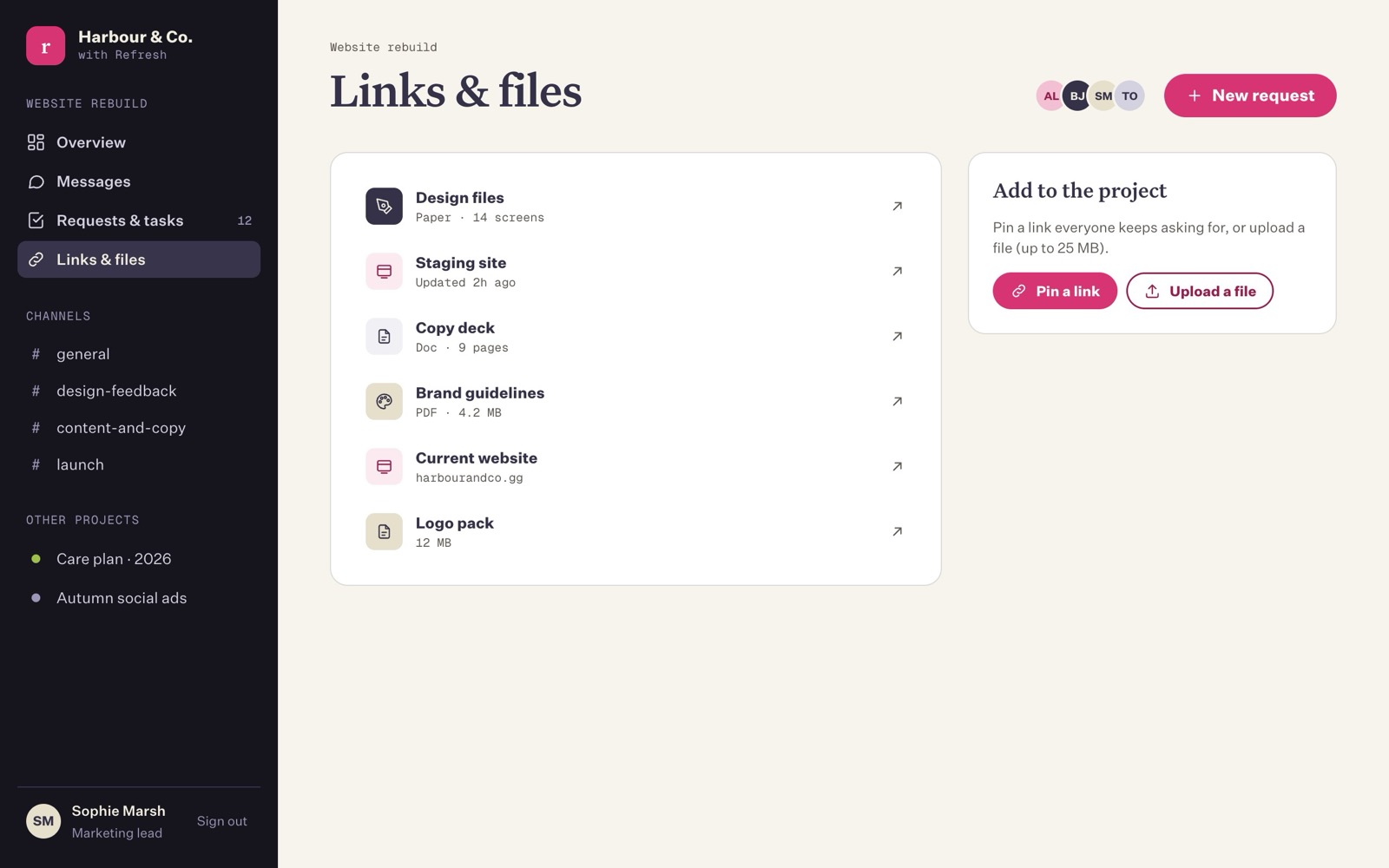
Every project has a short list of things people need again and again: the staging site (the private test copy of your new website), design files, your brand guide, the live site. Instead of hunting through emails, we pin them to the project.
You'll find them in three places:
- Links & files in the left-hand menu shows them all.
- Pinned links on your overview shows the first four.
- Always to hand on the right of Messages shows them next to the chat.
Pinning a link
- Press Pin a link (on the Links & files page) or + Add (on the overview).
- Give it a name, for example "Brand guide".
- Paste the link. It must start with
https://(orhttp://). - Choose a type: Link, Staging site, Design files, Live website, Document or PDF. This just sets the little icon.
- Optionally add a short note, for example "Google Drive · final version".
- Press Pin it.
Everyone on the project sees it straight away, and it's added to "Latest updates" on the overview.
Uploading a file
On the Links & files page, press Upload a file and choose it. It's uploaded and pinned to the project in one go, named after the file.
- Files can be up to 25 MB each.
- For anything bigger (a folder of high-resolution photos, say), use a file transfer service such as WeTransfer or a shared Google Drive or Dropbox folder, then pin the link.
You can also send a file in a chat message with the paperclip. That's best for one-off things; pin it if people will need it again.
Who can open them
Only people on your project can open files uploaded to the dashboard, and only while signed in. Every time someone opens a file, the dashboard checks they're still on the project. If someone is removed from your project, their access to its files ends at the same moment.
Pinned links to other websites (like a Google Drive folder) are only as private as that website makes them. The dashboard just keeps the link handy.
Removing something
Ask us and we'll take it off. Refresh can remove any pinned link or file from the Links & files page.
Last updated on 18 October 2026