- Help
- Using the dashboard
- Requests and tasks
Requests and tasks
How to ask for something, follow its progress, approve finished work, ask for changes and approve quotes.
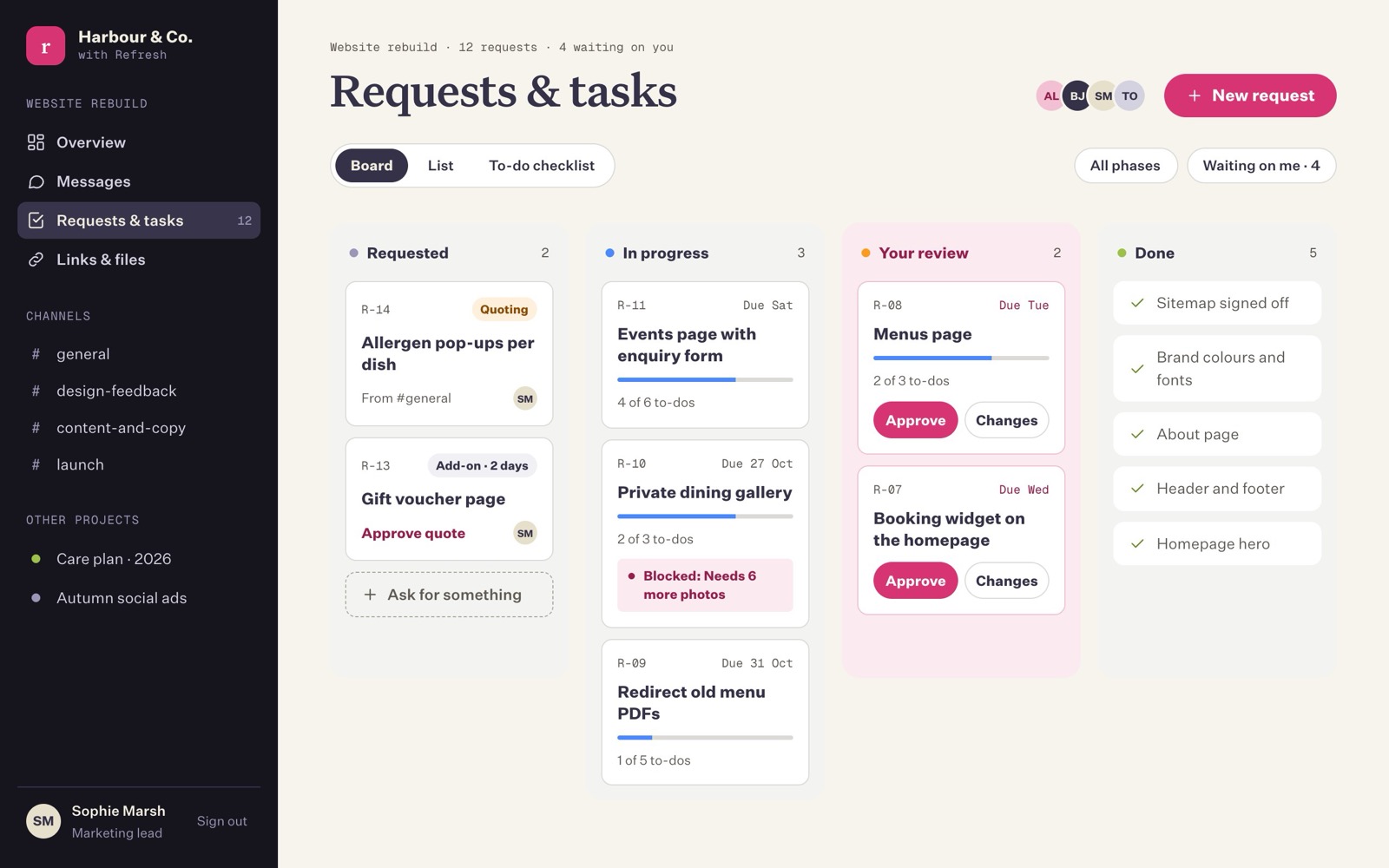
A request is anything you need from us: a change, a new page, a question, a fix. Each one gets a number (R-01, R-02 and so on) so it can't get lost in a long email chain. Choose Requests & tasks in the left-hand menu to see them all.
Asking for something
There are three ways, and they all end up in the same place:
- Press New request at the top right of any page.
- On the Requests board, press Ask for something at the bottom of the Requested column.
- In Messages, type what you need and press Make it a request (see Messages).
The form asks for a short title (for example "Add a gift voucher page") and details: what you need and why. Press Send request. You'll see "Sent as R-15" and the team gets an email straight away.
What the statuses mean
| Status | Column on the board | What's happening | Who it's waiting on |
|---|---|---|---|
| Requested | Requested | We've got it but haven't started. | Us |
| Quoting | Requested | It's outside the original plan, so we're pricing it, or the price is ready for you. | Us while we price it, then you |
| In progress | In progress | We're working on it. | Us |
| Your review | Your review | It's done and ready for you to look over. | You |
| Done | Done | Finished and approved. | Nobody |
A request can also be marked Blocked, with a short reason such as "Needs 6 more photos". That means we're stuck until we hear from you, so it appears in your "Waiting on you" list too.
Finding your way around the board
At the top of the board are three views:
- Board: columns, as above. Each card shows its number, title, due date, how many of its to-dos are done (for example "2 of 5 to-dos") and how many comments it has.
- List: the same requests as a table, handy for a quick scan.
- To-do checklist: every to-do on every request, grouped by request.
Two filters sit on the right:
- All phases lets you show only the requests for one phase, for example Build.
- Waiting on me shows only the ones we need you for. The number on the button tells you how many there are.
Inside a request
Click a request's title to open it. You'll see:
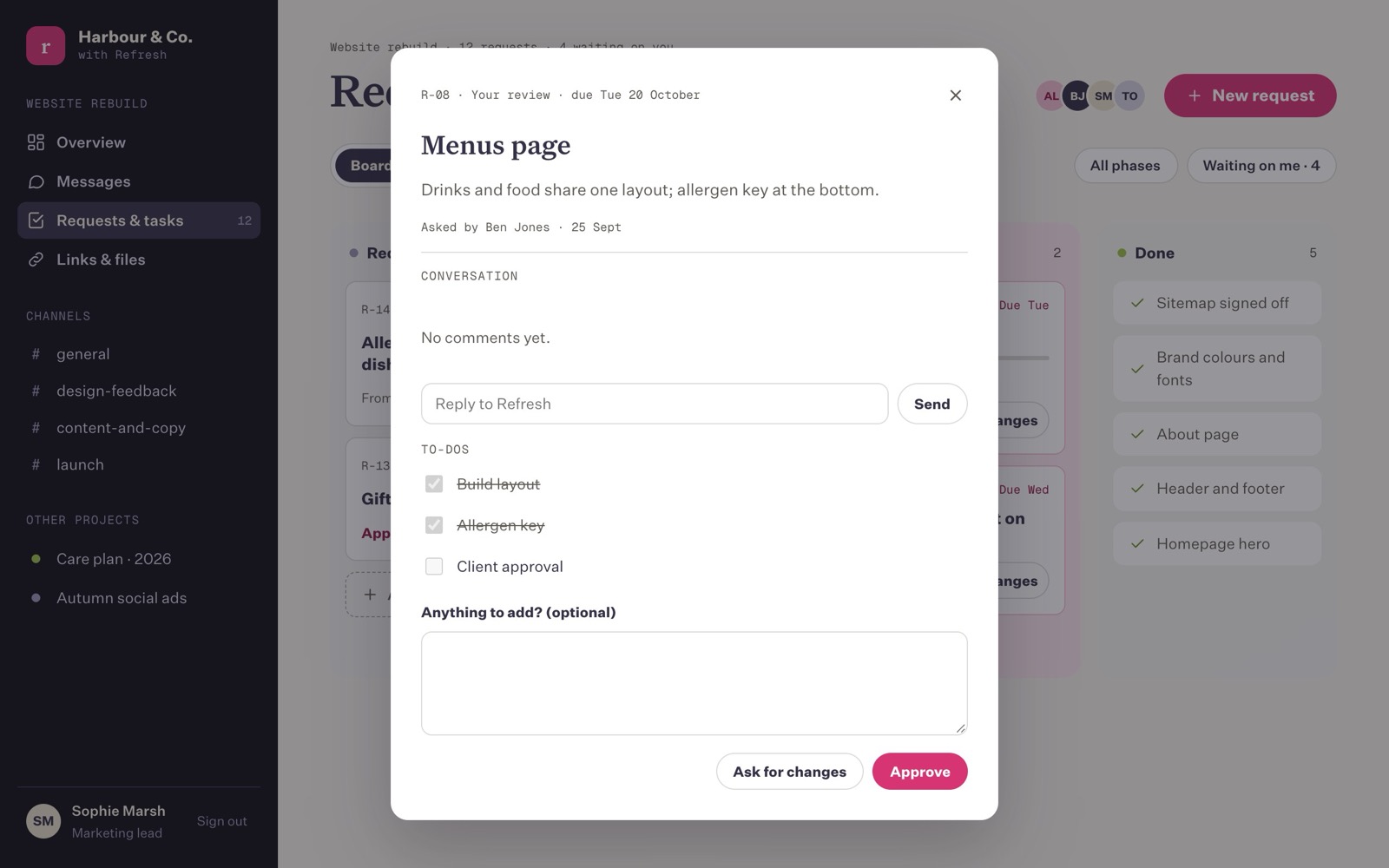
- Its number, status and due date, the title and your original details.
- The quote, if there is one, and the Blocked reason, if there is one.
- Who asked for it, and when (and which channel, if it came from Messages).
- Conversation: a thread of comments about just this request. Type in Reply to Refresh and press Send (or Enter). Everyone else on the project gets an email with your reply.
- To-dos: the steps we've broken the work into. You can see them being ticked off as we go, but only Refresh can tick them.
Approving finished work
When a request is ready, it moves to Your review, appears in "Waiting on you" on your overview, and we email you "Ready for your review".
- Open it and have a look at the work. There's usually a link to the staging site (the private test copy of your website) in the conversation or under Pinned links.
- If you're happy, press Approve. You can add an optional note first in Anything to add?
- The request moves to Done and we get an email to say you've approved it.
You can also press Approve directly on the card on the board, without opening it.
Asking for changes
If something isn't right, press Ask for changes inside the request (or Changes on its card). Write what needs changing in What needs changing? and press Ask for changes again. You have to write a note; it's how we know what to fix.
The request goes back to In progress, your note appears at the top of its conversation so it stays with the work, and we get an email straight away.
Approving a quote
Some requests are outside what was originally agreed. Before we start one of those, we put a price on it. You'll see a short quote such as "Add-on · 2 days · £840" on the card, in "Waiting on you", and in an email called "A quote to approve".
- If you're happy, press Approve quote on the card, or open the request and press Approve quote and start. You'll see "Quote approved. We'll get started." and the request moves to In progress.
- If you'd like to talk about it first, don't approve it. Reply in the request's conversation or send us a message.
Nothing extra starts until a quote is approved.
Changed your mind?
If you approved something by mistake, or a "done" request needs another look, just reply in its conversation or send us a message. We can move it back.
Last updated on 18 October 2026