- Help
- Using the dashboard
- Messages and channels
Messages and channels
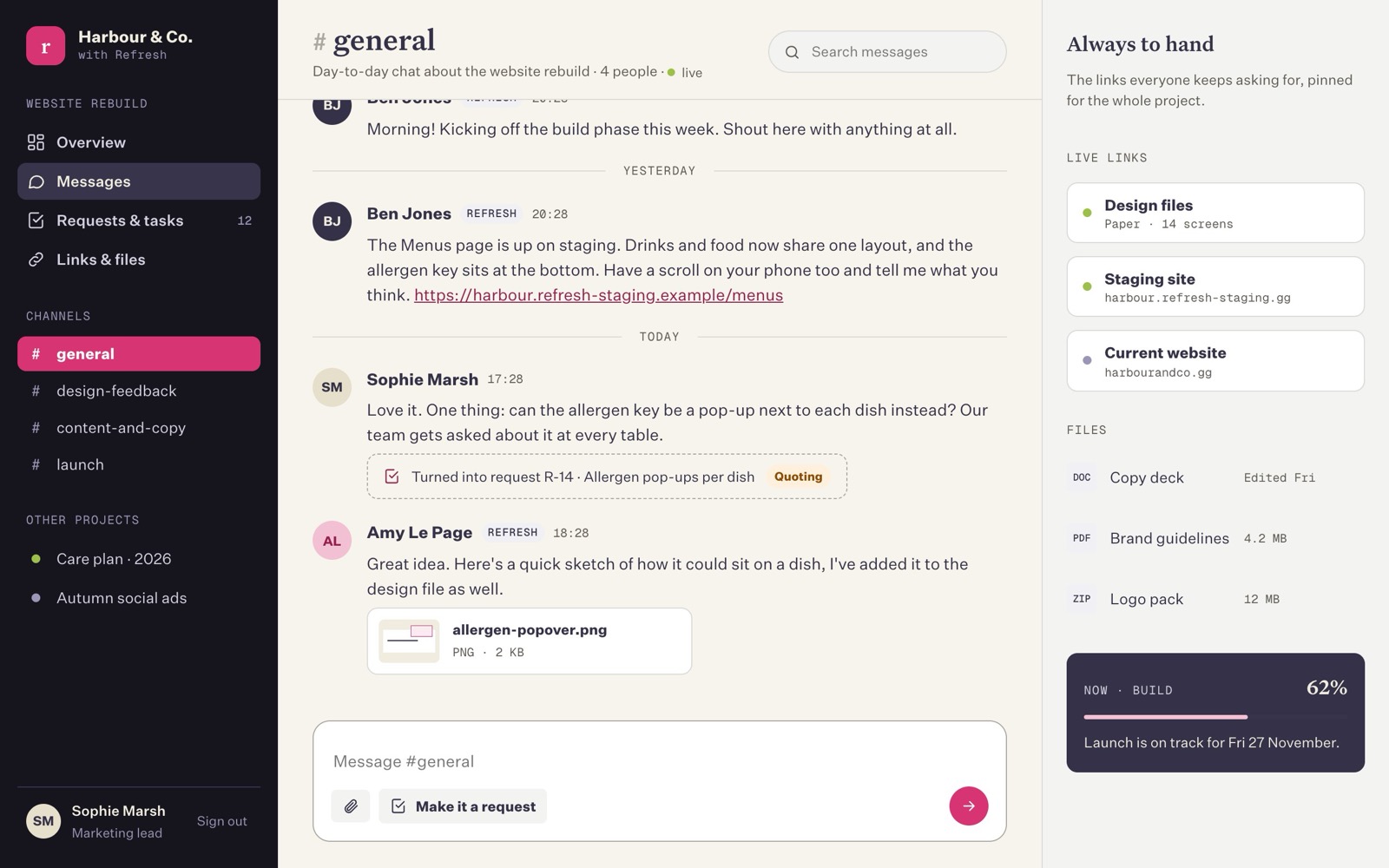
Live chat with the Refresh team, kept in channels so different conversations stay tidy.
Choose Messages in the left-hand menu. A small number next to it shows how many messages you haven't read yet.
Channels
Each project has one or more channels, listed under Channels in the left-hand menu. Every project starts with #general for day-to-day chat. We sometimes add others, for example #design or #content, so a long conversation about photos doesn't bury a question about the launch date.
- A channel name in bold has messages you haven't read.
- Everyone on the project can see every channel in it.
- Refresh sets channels up. If you'd like a new one, just ask.
At the top of the channel you'll see its description, how many people are on the project, and a small connection label:
| Label | What it means |
|---|---|
| live | You're connected. New messages appear instantly. |
| live · Ben here | Someone else is looking at this channel right now. |
| connecting or reconnecting… | Your connection dropped (perhaps your Wi-Fi). It reconnects by itself. |
When someone is typing, you'll see "Ben is typing…" just above the message box.
Sending a message
Type in the box at the bottom and press Enter to send. To start a new line without sending, press Shift Enter. Links you paste become clickable.
Messages from the Refresh team have a small REFRESH label next to the name, so you always know who's who.
If a message doesn't send
If your message can't be delivered within about 10 seconds (for example, your connection dropped), it's marked Not sent with two options: Try again or Discard. A message is never left looking sent when it wasn't.
Sending a file
Press the paperclip button under the message box and choose a file. You'll see "Uploading…" and then the file's name and size. Add a message if you like, then send. Pictures show as a preview in the chat; other files show as a card you can click to open.
- One file per message, up to 25 MB.
- To change your mind before sending, press Remove next to the file.
- Only people on your project can open files sent here.
For a file everyone will need again and again (a brand guide, say), pin it instead, so it doesn't scroll away.
Make it a request
Sometimes a chat turns into a job. Type what you need and press Make it a request (under the message box). Your message is sent to the channel as usual, and the new request form opens with it already filled in. When you send the request, a card appears in the channel saying "Turned into request R-15 · title", which anyone can click to open.
See Requests and tasks for what happens next.
Finding an old message
- Type in Search messages at the top right of the channel and press Enter. Clear the box to go back to the full conversation.
- To read further back, scroll to the top and press Load earlier messages.
The "Always to hand" panel
On wider screens, the right-hand side of Messages shows the project's live links (such as the staging site), pinned files, and a small card with the current phase and how far along the project is. It's the same information as on the overview, kept next to the chat so you don't have to switch pages.
What you can't do yet
Who sees what
Everyone on your project, from your side and ours, can read every message in its channels. Nobody outside the project can, including our other clients. See People for how people are added and removed.
Last updated on 18 October 2026