- Help
- Using the dashboard
- Signing in
Signing in
There are no passwords. You sign in with a link we email you, which works once and runs out after 15 minutes.
Getting your invitation
You can't sign up to the dashboard yourself. Someone at Refresh adds you to your project, and you get an email saying, for example, "Ben Jones added you to Website rebuild on the Refresh dashboard". Press Open the dashboard in that email and you'll land on the sign-in page with your email address already filled in.
If you haven't had an invitation, ask your contact at Refresh to add you.
Signing in, step by step
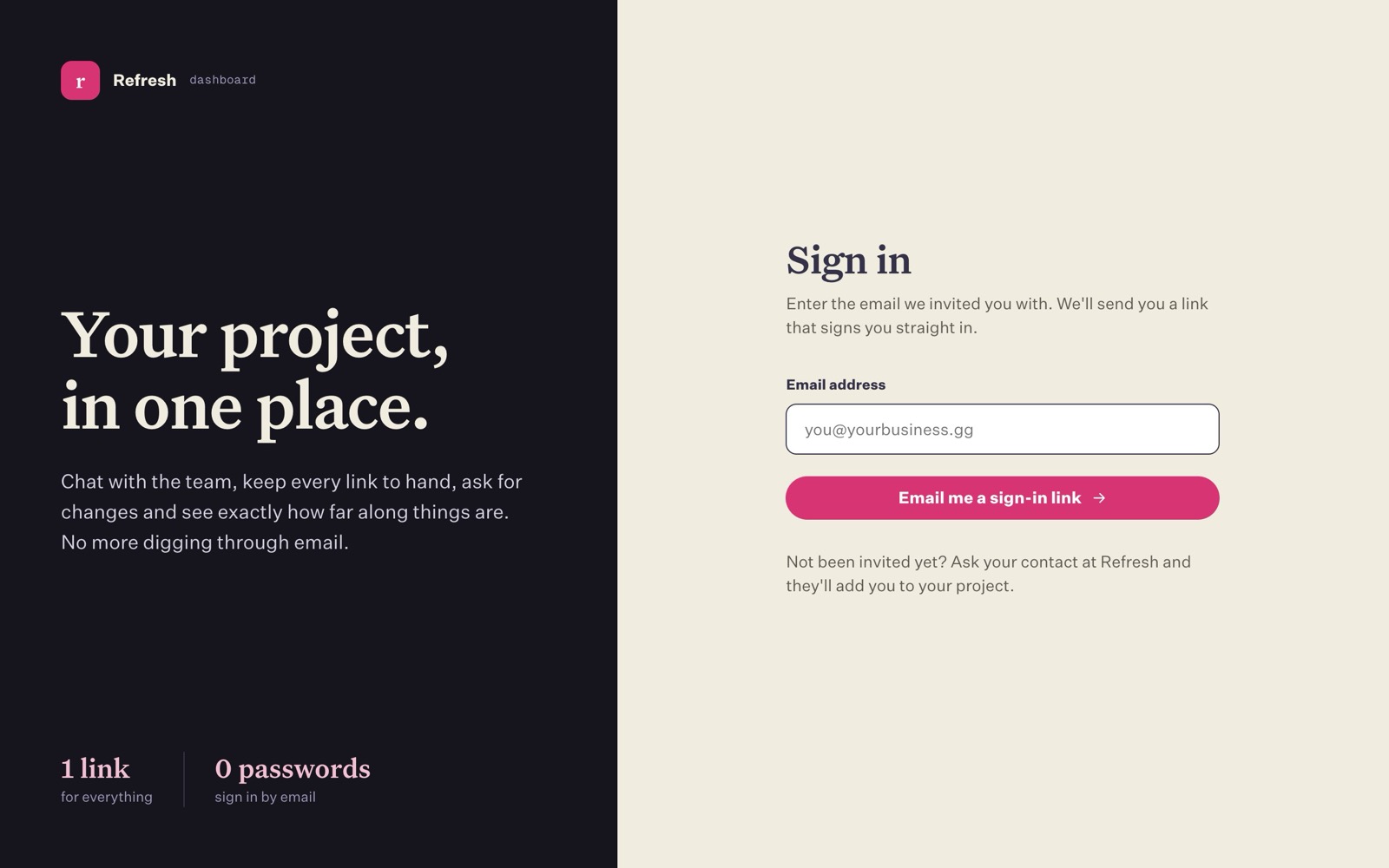
- Go to dashboard.refresh.gg.
- Type the email address we invited you with and press Email me a sign-in link.
- You'll see "Check your email". Within a minute or so you'll get an email called Your sign-in link for the Refresh dashboard, from dashboard@refresh.gg. If it doesn't arrive, see Resending the link below.
- Press Sign in to your project in the email.
- A page opens that says Nearly there. Press Sign in. You're now in your project.
Resending the link
Under "Check your email" there's a Resend link button. It shows a countdown, for example "Resend link (0:42)", and you can press it once the minute is up. Each time you resend, the countdown starts again.
- Earlier links still work. Sending a new link doesn't cancel the old ones, so if two emails arrive you can use either (each still works once and runs out 15 minutes after it was sent).
- Up to 5 links in 15 minutes. After that the button stops and tells you how long to wait. In the meantime, use one of the links you've already been sent.
- Typed the wrong address? Press Use a different email just below the button and start again.
Before resending, check your junk or spam folder. The first email has often already arrived there.
How the link works
- It works once. After you've used it, it can't be used again.
- It runs out after 15 minutes. If you're too late, just ask for a new one.
- It signs in the browser you open it in. If you want to use the dashboard on your laptop, open the email on your laptop. Opening it on your phone signs in your phone instead.
- You can ask for up to 5 links in 15 minutes. After that, wait a little before asking again. Every link you're sent stays usable until it runs out or is used.
- The "Check your email" message is the same whatever address you type. We don't say whether an address has been invited, so nobody can use the form to find out who our clients are. If no email arrives, check you used the address we invited.
Staying signed in
Once you're in, you stay signed in on that browser for 30 days, so you won't need a new link every time. After 30 days, or if you sign out, you'll need a new link.
To sign out, look at the bottom of the left-hand menu. Your name is there with a Sign out button next to it. Do this on shared or public computers.
If something goes wrong
- "Link didn't work" means the link has run out or has already been used. Press Get a new link.
- No email? Check your spam or junk folder, check the address is the one we invited, and wait a minute. See FAQ and troubleshooting for more.
- "You are not on any projects yet" means your account exists but hasn't been added to a project. Ask your contact at Refresh.
Last updated on 18 October 2026